

Click covers for info. Copyright (C) Rudy Rucker 2021.


Author Archive

How to Make Ebooks #2. The Simpler Paths.

Monday, April 23rd, 2012

[Note: I slightly revised this post in December, 2016.]

In my previous post, How to Make Ebooks #1: Getting Started, I talked about five levels of workflow for making your own ebooks, (1) Simplest Upload a DOC, (2) Simple Convert a DOC, (3) Medium HTML, (4) Advanced HTM, and (5) Pro InDesign. Today I’ll talk about the (1) Simplest Upload a DOC and (2) Simple Convert a DOC levels. Much of this material carries over to the other levels as well.

This is a lot of material for a blog post. Oh well. I’ll break it up with some photos. When I’m done with these posts, I’ll combine them into a single file with no illos, and make them into an ebook pamphlet How To Make An Ebook.

Cleaning Your Text File

I happen to use Microsoft Word, but these remarks should apply to other word processors as well. Before you start epublishing your book, you want to get it into a reasonable format. To start with, I do a series of Search and Replace All calls.

*Replace double spaces by single spaces—do this several times to squeeze out the triple and quadruple space.

*Make sure your word processor is set to use smart or curly quotes—if not, set it that way, then replace all quote marks by quote marks (they’ll become curly), and do the same for apostrophes.

*Replace all triple hyphens — by the em dash symbol. Then replace any double hyphens — by the em dash as well. In the same vein, replace any triple periods by the ellipsis symbol.

* Get rid of any tabs. In Word this means replacing ^t by nothing. Epub and Mobi won’t show tabs. If you want paragraph indents, change the paragraph format style to do this. An indent of 0.3 inches looks good in epub format—you tend to want a little less of an indent in an epub than you’d want in a normal text printout.

*While you’re at it, get rid of all skipped lines between paragraphs. In Word, this means replacing ^p^p with ^p. If you want skipped lines after paragraphs, the HTML can do that automatically at a later point. If you want to use skipped lines for section breaks, it’s probably better to replace them by a typographic symbol like “***”.

*Use a web-page friendly font. Remember that an Epub or a Mobi is bascially a compact website. I prefer serif fonts as opposed to start sans-serif fonts like Arial. Georgia is a good serif font that you will work for most ereaders.

*What about paragraph alignment: Left or Justified? You’re probably used to working with Left, as otherwise the text jumps around weirdly while you write. But generally Justified looks better on ereaders—it makes it easier to see the paragraph indents. It’s a design decision, and you can try it out both ways.

*You can try putting in page breaks after your title page, after your table of contents, and after each chapter. These may or may not stick to the format when you convert to Epub.

Keep in mind, by the way that you’ll probably want to to multiple builds of your Epub and Mobi, trying out different looks. So the design decisions you make at the start aren’t necessarily irreversible.

Internal Table of Contents.

You might as well autogenerate a TOC or table of contents in your word processor before loading your document to an Epub. The first, crucial step is to make sure that your chapter headings are formatted in what Word calls the Heading 1 style as opposed to a paragraph style. That way when your document is munged into an HTML on the way to becoming an Epub and Mobi, your chapter headers will get a native HTML style called h1.

Word and other processors let you insert an auto-generated TOC into your doc, based on the Heading styles. Typically, you only want the Heading 1 entries in the TOC, so it’s not too cluttered. Or if you have Heading 2 entries, you don’t want more than one or two per chapter.

Anyway, put a simple autogenerated TOC into the start of the word processor doc. And then—crucial step for later use, go to the line before the start of the Table of Contents and ask your word processor to add a so-called Bookmark (or Anchor) with the name “toc.” And then the Kindle reader can use that to find your TOC.

One more thing, the very first page of your document should be a title page, rather than the cover, and the title itself should be given the Heading 1 format. It seems dumb to have the book title in the Table of Contents, but that’s what iBooks wants.

Later we’ll learn that you don’t totally need the internal table of contents, as the Epub format generates its own TOC, and the Mobi can too, but it doesn’t hurt to throw the reader a frikkin’ bone in terms of finding their way around your book.

Cover

For the cover of your Ebook, use an external photo editor to create a cover.jpg file which is about 600 pixels by 800 pixels high. The cover obviously should show your name and the title of the book. Save it in your images mages subdirectory. In World use Insert | Picture to insert this image near the very start of your DOC. Format the paragraph holding the cover image as Left or Centered, rather than Justified.

If you have more images, you can insert them too, although we’ll have more to say about this.

As I mentioned before, the cover should be near the start, but the very first page of your document should be a title page.

If you want you can save a bigger version of your cover as well. When you upload to Amazon or B&N, they’ll as for a cover image, and you can upload the same one you use in the book or you can upload the bigger one.

Simplest of All: Upload a Doc. And Preview It.

Upload your DOC or RTF to Amazon KDP and, if you like, to NOOK. You’ll need to upload a cover image JPG file as well. And Amazon KDP will let you download the MOBI file and NOOK will let you download the EPUB. And then you can look at them.

And remember you can view the Mobi in the Kindle Previewer, which can be set to match various types of Kindles. One thing to remember about the Kindle Previewer is that its images look a little screwed-up on Windows if you’ve set your Display to make the screen text larger than the default 100%. You can temporarily rest your screen text to 100%, or you can download a Kindle app and view the Mobi in that instead.

For EPUB, here are some options:
*Multiplatform Desktop: Firefox EpubReader Add-on .
* Android: The FBReader and Aldiko apps are recommended.
* iPhone/iPad/Mac: The free iBooks app is one of very best ebook readers around.

You’ll probably notice that your Epub looks different in the different ereaders and the Mobi looks different in different kinds of Kindles. Kindle tends to put a large paragraph indent, doesn’t skip a line between paragraphs. Kindle Fire does no indent, skips a line between paragraphs. iPhone does a small indent if you asked for that, doesn’t skip a line. NOOK doesn’t resize images below a certain size. Etc.

There’s not a huge amount you can do about this, although I will talk about formatting in section #3 of these posts. Creating Ebooks is one of those “write once, debug everywhere” software things. Rather than going crazy over this, you need to accept a certain lack of control.

Make An EPUB and a MOBI with Calibre

Suppose you want to get a little further in. Let’s move from the simplest level to the simple level. Try building EPUB and MOBI on your own machine.

Save your document file into the RTF format. Then open Calibre, and use the Add Books button to add your RTF file. Click on the Convert Books button, set the output format in the upper right to EPUB, and fill in some of the info in the Convert Books dialog.

One thing you want to do is fill in some of the Metadata fields. If you have a cover graphic for your book you can add it now, it might as well be color. It can be 600 by 800 pixels, although certain sizes fit better with certain readers.

Looking down along the left margin of the Convert Books dialog you’ll see other subdialogs to play with. Look and Feel gives you some leeway, but not all that much—to really change your appearance you’ll need to take the Medium level workflow and play with some HTML. For now, you might as well leave Look and Feel at its default values.

The Page Setup subdialog is kind of important. The main thing it affects is whether or not Calibre is going to resize any images in your document. If you set Kindle for the output, it’ll crush the images down to about 500 pixels across. I like to change the Output profile to Tablet, which allows images to be up to 1000 pixels across without being resized. Default Input Profile is fine.

We’ll talk about the Table of Contents options below.

So now click the OK button at the bottom of the Convert Books dialog and whirl-whirl-whirl, a little graphic wheel turns at the lower right of the Calibre window and your RTF is converted to an Epub.

Now you can go back to Convert Books and set the Output to MOBI and make a MOBI too. Another way to get from EPUB to MOBI is to open the EPUB in the Kindle Previewer, it does a version as well.

You can preview your Epub and your Mobi by clicking on the file format name beneath the image of your book in the right side of the Calibre window. Note that the Calibre previewer doesn’t preserve the proportions of images like your cover, it distorts them as you change the viewer size—don’t worry about this, you won’t see this bad effect in other ereaders

And you can use the other previewers I mentioned above.

Examine and Verify the Epub with Sigil

Now try opening your Epub with the Sigil tool. Here we’re just opening but note that Sigil can open an HTML and convert it to Epub on the spot. But now just open your new Epub.

Use the Sigil menu item View to put check marks on Book Browser and Table of Contents so you see those windows.

The Book Browser shows all the different components that are hidden inside your EPUB file. Two special weird files are CONTENT.OPF and TOC.NCX. You can click on them to see what’s inside them…computer-code type text.

The other files are under headerings like Text, Images, and Styles. You will probably see quite a few HTML files in the Text section, or more properly they’ll be XHTML (almost the same as HTML). Not just one of them. Where did so many of them come from?

Well, the average ereader has limited computational resources, and it doesn’t like to bite off the whole big book at once. So Calibre, or any online “meatgrinder” conversion program such as the one used by Kindle — when converting your RTF to EPUB, they’ll break your document into a buttload of small XHTML files. That’s why you see so many of these files. By the way you can split up HTML files inside Sigil by hand, and we’ll discuss that later.

Also note that you’re free to rename some of the XHTML files if you want, and the changes will instant percolate out into the other parts of the EPUB build. Sigil is a smart and responsive program, and it constantly updates the whole EPUB to match any changes you make in any part.

The Sigil Table of Contents window should show a Table of Contents. If it’s not there, you can automatically create a Table of Contents by clicking Generate TOC from Headings, and then clicking OK in the Heading Selector. You can see if it worked by double clicking on some of the items in the Table of Contents box.

If you didn’t format your book title as a header in Word, you can still do that here in Sigil. Select the title and use the drop-down menu on the upper left corner of the Sigil window and apply a format such as Heading1.

Use the menu item Tools | MetaEditor… to fill in names for the Title, Author, and Language of your EPUB file, if you didn’t do that before.

In the Book Browser window in the left hand side of your Sigil window, find the Images directory and look for contents.jpg in there. Right click on it, select Add Semantics, and check Cover Image…this helps the readers know where your cover is.

Now use the Sigil Tools | Validate EPUB selection to see if you get errors. If you click on the error messages, you’ll see source code for the HTML, showing where the error lies. Often you can get rid of many errors by asking Sigil to rebuild the Tabel of Contents.

For future reference, if you don’t understand a Sigil error message paste it into the Google search box. You can fix them in the HTML files that you see in Sigil, as it allows you to edit the component XHTML files. But I’ll talk about this later.

For now save the Epub. If you made any changes, add the new version to Calibre as a fresh book and generate a Mobi again. Or load the Epub into Kindle Previewer to get a Mobi.

The Mobi TOC Problem

On my first Epub and Mobi builds, the TOC, or Table of Contents, gave me a huge amount of trouble. The weird thing is, your ebook is going to have two tables of contents. One of them will be an ordinary table of contents that’s inside your text.

The other will be a hidden file called TOC.NCX that’s part of the Epub package.

You can see the TOC.NCX if you open your Epub file in Sigil, and you can ask Sigil to generate this TOC.NCX, which is often a good idea, in case the TOC.NCX hasn’t yet been properly filled out.

Regarding the in-text TOC, the easiest way to get one might be to let Calibre make one for you when you covert your Epub to Mobi. To tell Calibre to make a TOC at all, you need to open the Convert Books dialog, set Output to MOBI in the upper right corner, click on the Table of Contents icon on the left. I like to check the “Do not add detected Table of Contents” box, and put these six symbols into the Level 1 TOC (Path Expression) box:

//h:h1

And I leave the Level 2 TOC and Level 3 TOC boxes blank. This tells the Calibre TOC generator only to make listings for the Heading 1 or h1 titles…as opposed to putting in an entry for every dippy little Heading 2 or Heading 3. I could also check the “Force use of auto-generated Table of Contents” box, I suppose, but I tend to leave it unchecked in case I have a hand-made TOC in my file.

Calibre actually puts this TOC into your Mobi file by default at the end. If you want the Calibre generated TOC at the start, you can tweak a setting in the Mobi Output section of the Convert Books dialog.

The other way to get a Mobi TOC is to do it yourself, may god hace mercy on your soul. I did this a few times when I was starting out, but I’ve found ways to avoid doing it—like by letting Calibre make my TOC, or by using InDesign and having it build a TOC on export.

But here, for those who care, is a how-to on hand-made TOC. I mentioned before that you might as well put a simple autogenerated TOC into the start of the word processor doc. And I said you ought to go to the line before the start of the Table of Contents and ask your word processor to add a so-called Bookmark (or Anchor) with the name “toc.” While you’red at it, put a hard pagebreak before and after your internal TOC, which will probably force it into a separate little XHTML document of its own when Calibre shatteres your document into numerous small HTML files.

The Kindle reader can use the bookmark or the separate XHTML fragment to find your in-document TOC, but you have to feed it a so-called guide reference that you edit into place using Sigil on the Epub file.

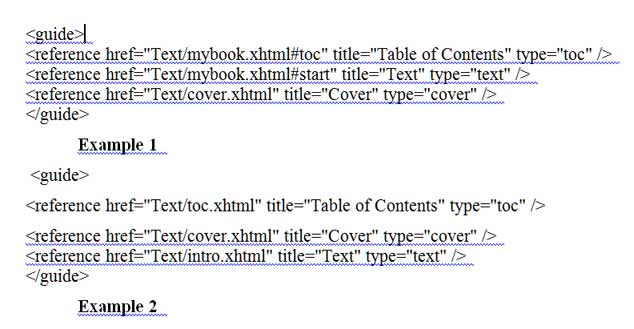
The so-called guide references live near the end of an Epub component file called CONTENT.OPF. You can browse and edit this file if you open your Epub inside Sigil. Just click on CONTENT.OPF. Typically Kindle only pays attention to three entries with these types: “toc” “cover” and “text.” The “toc” link goes to the Table of Contents. The “cover” link goes to your cover image. The “text” link goes to where you want the beginning of the book to be. You title these references “Table of Contents”, “Cover,” and “Text” or “Beginning.”

The links that you give for these references are either bookmarks within pages or they are individual component XHTML “web pages” of the web site encapsulated in the Epub.

Here are two examples.

Example 1 uses bookmarks within pages, where you’ve also added a “start” bookmark for where you want the reader to begin with your book. The cover reference will probably be autogenerated and the file holding the cover renamed cover.xhtml. See the image below of the code in CONTENT.OPF.

Example 2 is for when your files are shattered into little ones and your in-text table of contents ended up in its own page. You might as well rename this page “toc.html” and while you’re at it, rename the page holding the cover “cover.html” and the initial introductory part of your book “intro.html.” Then the guide material looks like the second part of the image from CONTENT.OPF below.

Yeeeeeeccchhhh.  Too complicated! That sodding TOC! But the difficulty isn’t not insuperable. Tweak around for a bit, and you’ll have a working Mobi table of contents.

To summarize, there are three different ways to fix the Mobi TOC problem. (1) Use Calibre to convert to Mobi, and tell Calibre to generate a TOC in the Mobi output. (2) Generate an internal TOC in your document, put a bookmark on it, and use Sigil to set the Epub CONTENT.OPF guide to reference to this bookmark. (3) Generate an internal TOC in your document, and use Sigil see that it ends up in its own XHTML fragment that you name toc.xhtml, and set the Epub CONTENT.OPF guide to reference to the toc.xhtml file.

Any of these is easier than it sounds. Don’t be afraid to get in there and tinker.

In the next installment we’ll get into text and image formatting issues.

Onward to How To Make an Ebook #3: Calibre, Sigl, and HTML.

How to Make Ebooks #1. Getting Started (2021 Update with Paperbacks Info Link)

Friday, April 20th, 2012

[Note: I added a few more comments in 2021 to make this post more current. And I included a link to my acculmulated tips on how to make your own paperbacks as well.]

I plan to put up a series of four posts about the topic of how to epublish books on your own. In these posts I’ll focus on doing it all yourself. I’m going to describe the specific series of steps that I’m taking to epublish my Transreal Books.

Don’t take everything I say for gospel. There are many paths through the thickets of epub, and I’m only now beginning to find my way. I first posted on this topic in Fall 2011. And then I wrote this present post in April, 2012, and I did a some revisions to this post in December, 2016.

As of 2016, I’m largely using InDesign to create my ebooks. the reason I use inDesign to make ebooks is that I’m already using it to make print books. But learning to use InDesign was a long process with many, many gotchas.  And getting the EPUB export to work right took awhile too.  I’ve made a lot of notes on this process, and I’ve posted a roughly edited version of these notes online as “Using InDesign for Print and Ebooks.” These notes are kind of sequel to the blog posts you see here.

[Note also that in 2012 I combined, expanded and revised my How To Make an Ebook blog posts to make an ebook called How to Make An Ebook, available on Amazon . But this ebook is, as of 2016, a bit out of date, and I have not, as yet, revised it. For now, this post you are reading is my most up-to-date say on this topic.]

Posting the information seems worthwhile as I’ve really had quite a bit of trouble in learning it. Epublishing abounds with gotchas. But clearly its time has come.

Distribution: Kindle, iBook, Direct

So suppose I have a document and I want to make it into an ebook. Let’s start by describing the steps you can use to distribute your ebook once it’s done.

As of 2016, there are three main channels for distributing ebooks:
(1) Amazon Kindle,
(2) the Apple iBook store.
(3) Your own website. You can create MOBI and EPUB format books so as to reach all existing ereaders.

As of 2019, you can reach all of these markets via a sinble site, Draft2Digital.

Regarding the corporate channels, the ebook market share figures are constantly being debated, revised, and spun. As of 2016, it may be that Amazon sells close to 75% of ebooks, iBook around 12%, with Nook, Kobo and Google Play picking up some crumbs.  And it’s a big hassle to get your books onto iBooks.  So bascially, it’s all about Amazon Kindle.

One thing to keep in mind from the start is that you can distribute through all of these channels for free—provided you have a certain amount of patience and a good tolerance for pain. You can pay various intermediaries to set up distribution for you, but don’t make the mistake of paying a large up-front fee for this service and/or the mistake of cutting them in for the lion’s share of your royalties.

Set-Up

You need to set up your corporate distribution accounts. Google for “Amazon KDP” (Kindle Direct Publishing) to get an account for distributing Kindle ebooks. And use Draft2Digital to distribute to Apple iBooks. If you want you can also distribute to Google Play.

There is a direct Apple iBooks channel, but this is a little more complicated.  If you own a Mac or have extensive access to one, you can directly upload an ebook to iBooks using the Apple program iTunes Producer.  More info.  You cannot, however, run iTunes Producer on Windows machines.

Other than Kindle and iBooks and indie, there are alternate paths to the ebooks market.  You might, for instance, search for “NookPress” to get set up for distributing NOOK—if you want to bother with that one. But to keep things simple, I’m going to stick to KDP, Drfat2Digital, and your own indie website.

Another initial step (not absolutely necessary) is to invent a name for your publishing enterprise, and to purchase an ISBN (International Standard Book Number) for your book. You do this by seraching for “Bowker ISBN” and buying one or several ISBNs—they’re not hugely expensive. The gain with having your own ISBN is that it makes it easier to get your distributors to attribute your book to your personal publisher name. Note that some people say that you need a different ISBN for each distribution channel. My preference is to quietly use one particular ISBN for all of a given ebook’s channels.

Now a bit about distributing your ebooks from your own website.

First you want to get a PayPal account so people can easily pay you. Note that PayPal is set up to accept credit card charges from customers who don’t have a PayPal account of their own.

Second you need a service to handle the process of collecting money from the customers and getting copies of the ebook to them. In the past the relatively inexpensive service E-Junkie worked well for me. Be careful here, there are some rip-off services that do the same thing, but who charge you a very high monthly fee and who take something like 10% of all your sales. E-Junkie, on the other hand, was a good deal. Bit now its importance is fasing.

As of 2021, the best and easiest way to distribute ebooks is to upload an EPUB of the book to Draft2Digital, who will distribute the book to virtually all ebook platforms. You don’t have to pay them anything at all, but they do take a small cut of your profits.

Third you’ll need to set up a webpage describing your ebook or ebooks, complete with purchase links (which will redirect them to, let us say, E-Junkie, who’ll collect customer info, chage them via PayPal and email the customers a download link).  Note here that, in 2021, it’s a good idea to use a universal ebook link; you can make them for free at Books2Read.

EPUB and MOBI Formats

Ebooks are distributed in two main formats: EPUB and MOBI. What are they?

EPUB is the more generic format. Basically, an EPUB file is like a compressed website. It’s a package file that holds all the elements of a website. Specifically, an EPUB holds a Text directory with one or more HTML or XHTML files with your text in it, a Styles directory with a CSS style sheet to control the styles used in your text, an Images directory with JPG image files for each image in your text, a TOC file with a table of contents, and a funky OPF “manifest” file that describes how the pieces fit together. It’s a website wrapped in a package.  A virtue of working with EPUB files is that it’s possible to edit them.

The iBook, NOOK, and all the other ebook readers use EPUB.

There are various ways to turn your DOC or RTF text file into an EPUB file—I’ll discuss both an easy way and a harder way of doing this.

MOBI is a close variation on the proprietary Kindle ebook file format. Like EPUB, a MOBI holds text, images, table of contents, and a “manifest.” Amazon actually uses a variation on the MOBI format called AZW, but Kindles will read MOBI files. It’s rather easy to convert an EPUB file into a MOBI. We’ll talk about this in a bit. The thing to remember is that first you need to make an EPUB, and making the MOBI after that is practically effortless (modulo a bit of screwing around with some tags). The reason you want an EPUB file is that it’s reasonably easy to edit EPUB files, but hard to edit a MOBI file.

Keep in mind that if you want to give away or to sell your book from your own website, you’ll need to make EPUB and MOBI versions of it at home. The MOBI is for Kindle users, and the EPUB is for everyone else. If you have these two formats, then you can reach all the ereading devices or apps in existence.

But—if you can’t face the tweaking ordeal of making EPUB and MOBI and getting into an indie-distribution website, you can simply sell your book via the big channels.  And here, once again, it’s Amazon that really matters.  You send a a book file to them, and they do the rest.

Amazon KDP . Will accept EPUB, HTML, DOC or RTF.  In general I prefer to send an EPUB to Amazon.  I do like to make the EPUB myself so I have some control over how the ebook will look.

Apple iBooks.  If you have a Mac, you can use iTunes Producer to upload an EPUB.  If you have Windows (or a Mac) you can go use Draft2Digital. They will accept EPUB, DOC, or RTF.

Scraps. Barnes & Noble will accept EPUB, HTML, DOC, or RTF fot their Nook line.  You can go to them direclty, or distribute to them via Draft2Digital.

Once again, if you don’t want to do indie distribution, and don’t want to do ebook conversion at all, you can just clean up your DOC or RTF and upload it to Amazon. And upload a clean DOC to Draft2Diital for iBook, and Barnes & Noble, and Kobo market and others.

Making your own EPUB and MOBI: Why and How?

There are two main reasons to make your own EPUB and MOBI.

First of all, it gives you better control over how your ebook will actually look.

Secondly, if you want to distribute indie ebooks on your own, you need to get them into EPUB and MOBI—and really this just means getting them into EPUB, as the EPUB to MOBI conversion is so simple.

So now lets talk about how you make an EPUB and a MOBI.

You’re going to use three very good free software tools. (1) Calibre . (2) Sigil . Scroll to the bottom of this GitHub page to find the download links. (3) The Kindle Previewer. These tools do different things, and you need all of them. They’re constantly being updated, so check for updates every so often.

Calibre converts files from one format to another. And can use Calibre to edit the so-called metadata (title, author’s name, ISBN, publisher name, etc.) in your files.

Typically you use Calibre to convert RTF or HTML into EPUB and then into MOBI. That is, you shoot for getting the EPUB the way you want it first, and only then do you convert to MOBI.

The Calibre conversion process is automatic, although there are a rather large number of Conversion settings you can tweak to affect the outputs. It usually takes multiple iterations until you get the settings and the outputs just right. Calibre also has a primitive ereader window that lets you look at the current states of your EPUB and your MOBI. And you can, to some extent, directly edit your EPUB in Calibre. When you’re happy you can save your EPUB and MOBI files to disk, and try them out in other ereaders. And you’re free to return to Calibre and change the files some more.

Sigil allows you to tweak your EPUB file directly in various ways: you can edit or wholly replace the text, add or remove images, alter the Table of Contents, and more. Sigil also has the ability to verify if your current EPUB has any format errors in it, and it helps you fix them. Sigil has become a shareware “GitHub” program, rather than a program with a single developer, but it’s still very good. People who dump on it don’t know what they’re talking about.  I’ve been using it since 2012, and have never had a problem with it.

Kindle Previewer autoconverts an EPUB into a MOBI and lets you preview how the MOBI will look on the various kinds of Kindle devices.  The Kindle Previwer also writes a copy of the MOBI to your hard disk, so this is a very easy way to convert EPUB to MOBI.

Four Work Flows

I’ve used five different work flows in making your EPUB and MOBI. (1) Simplest Upload Word DOC, (2) Simple Convert a DOC (3) Medium Level HTML, (4) Advanced Level HTML, and (5) Pro Level InDesign Export.

Simplest Level Just Upload a DOC
* Clean up your DOC or RTF file.
* Upload to Amazon KDP to get the MOBI file via the ‘Download Book Preview’ file option.
* Upload to NOOK or Lulu to download the preview EPUB file.

Simple Convert a DOC
* Clean up your DOC or RTF file.
* If you’ve been using DOC, now save it as an RTF.
* Use Calibre to convert your RTF into an EPUB.
* Use the Sigil software to verify the EPUB and to do minor edits on it.
* Use Calibre or the Kindle Previewer to convert the EPUB into a MOBI.

Medium Level HTML (Only if you’re an HTML coder)
* Clean up your DOC or RTF file.
* Convert your DOC or RTF into an HTML file, then tweak the HTML
* Use Calibre to convert your HTML into an EPUB.
* Use the Sigil software to verify and to correct problems in the EPUB.
* Use Calibre or the Kindle Previewer to convert the EPUB into a MOBI.

Advanced Level HTML (Don’t bother with this one)
* Clean up your DOC file.
* Use Dreamweaver to convert your DOC into an HTML file, then use Dreamweaver to clean and tweak the HTML. Create a CSS stylesheet for the HTML.
* Use Sigil to directly create an EPUB from your HTML, from an associated CSS stylesheet you’ve created, and from images that you’ve properly sized.
* Bounce back and forth between Dreamweaver and Sigil, finding and correcting problems in the EPUB.
* Use Calibre or the Kindle Previewer to convert the EPUB into a MOBI.

Pro Level InDesign Export (My current favorite)
*”Place” your DOC into an InDesign file.
*(Optional) Tweak the polish the InDesign file so you can save off a PDF copy for paperback publication via Amazon CreateSpace
*Use the InDesign Export function to save off an EPUB.
*Use Kindle Previewer to convert the EPUB into a MOBI.

Regarding the use of InDesignfor my fifth, and now-preferred, workflow, as I mentioned at the start of this post—-it took a long time to learn how to do it. On December 4, 2016, I posted a roughly edited set of notes about it as a web page, titled “Using InDesign for Print and Ebooks.”

In the later posts in this series of blog posts at hand, I’ll talk about the steps of the first four workflows, and about such issues as how to handle covers, internal images, tables, styles and tables of contents.

And if you’re eager to start experimenting, you could try the (1) Upload a Doc. Try it right now. I describe that one in the next post, How To Make an Ebook #2, with the link down below.

Or try (2) Simple Level Convert a Doc workflow level a try, just to see what your MOBI or EPUB might look like. Make a copy of some document you like, put it into a Playpen directory, and let Calibre munge on it. One thing worth stressing: always keep an Archive directory where you keep the best forms of your DOC, EPUB, HTML or whatever files for your ebook. Calibre has a way of screwing with the files that you load into it, and you don’t want to overwrite your archived files with the screwed-with files.

For getting started, there’s an online Calibre user manual to help you along. The MobileRead forums have a huge amount of info if you use the Search box. And simply Googling your questions often leads to good answers—although there’s a lot of inaccurate jabbering as well#2:

Go on to How To Make an Ebook #2, the Simpler Paths…

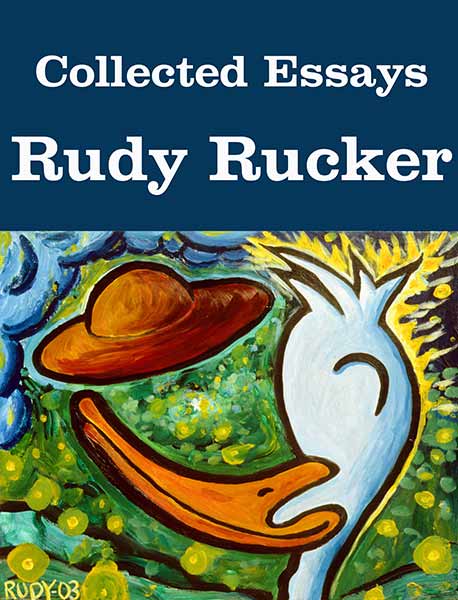
Collected Essays, at Transreal Books

Monday, April 16th, 2012

A new Transreal Books title goes live today!

Now selling for $4.95. Go to the Transreal Books page to buy the book from Amazon or to buy the Epub or Mobi (for Kindle) files directly from Transreal Books. Barnes & Noble link coming soon. Book will eventually be in the iBook store as well.

Collected Essays includes the nonfiction pieces from my two earlier collections, Transreal! (1991) and Seek! (1999). And many, many newer essays have been added as well. How to write, history of Silicon Valley, semi-technical articles on graphics, the philosophy of computer science, travel notes, off-beat memoirs—it’s all here.

Collected Essays weighs in at twice the length of an ordinary book, with sixty articles and about a hundred illustrations, many in color.

The essays fall into seven parts:

(1) “The Art of Writing.” Manifestos and talks about writing science-fiction.

(2) “Silicon Valley.” Cool scenes Rucker witnessed as he rode the Silicon Valley computer wave for over twenty years, starting in 1986.

(3) “Weird Screens.” Graphical programs that have obsessed Rucker—cellular automata, artificial life, fractals, space curves, and virtual reality.

(4) “Futurology.” Playful raps and speculations about the coming times.

(5) “The Philosophy of Computation.” Digital immortality, artificial intelligence, and the birth of a universal mind.

(6) “Personal Stories.” Tall tales and reminscences of strange times.

(7) “Mentors.” Appreciations of the great minds and wild freaks who led Rucker along his path: Kurt Gödel, Martin Gardner, Robert Scheckley, William Burroughs, Allen Ginsberg, Ivan Stang and Stephen Wolfram.

Go get it at Transreal Books .

NYC #2. Museums. Ground Zero.

Saturday, April 14th, 2012

I’ve been kind of strung-out on computer programming for the last month. Turning some of my old stuff into ebooks. I keep meaning to write up a detailed “how to publish an ebook,” but I keep learning new stuff. So many gotchas.l

I’ll be announcing my new ebook, Collected Essays, on Monday or Tuesday, and it’ll be available via several channels on my Transreal Books site. But today is Saturday, and not a good time to launch a web product. Today I’m mainly posting more photos from our trip to Manhattan early in March.

As I mentioned, we were on the 34th floor of a hotel on 8th Ave near Times Square. The window actually opened, a little bit, and it was so awesome to look down at the people. Great morning shadows of the cyclists.

And the skyscrapers at night. Another world.

The Met has a renovated section of art from the Arabian countries. Wonderful stuff. One of my favorites was this calligraphic emblem called a “tughra,” from the court of Süleyman the Magnificent, 1555. The pieces of it stand for parts of Süleyman’s titular name. But the details make it rather conspicuously difficult to forge.

Interesting Babylonian art near the Arabian art wing of the Met, too. R. Crumb used to draw flying vulture demonesses. Maybe he’d done some actual art-historical research.

Naturally we hit the MOMA as well. Nice atrium. Great to see the golden oldies of modern art upstairs. For some reason Picasso’s “Girl Before a Mirror” is in storage. The biggest draw right now is van Gogh’s “Starry Night.” Kind of a weird 21st century crowd in front of it, all foreign tourists, and every single one is holding up a camera or cell phone to get a picture of the actual painting in actual real life—photography is allowed, and by now everyone finally understands not to use their flash. But weird to have this anenome mass of arms with cameras on the tips. SFictional.

The really great new thing at the MOMA was a retrospective show of Cindy Sherman’s work. I looked it over first with Sylvia, then with our cinematographer friend Eddie Marritz. We liked her early work “Untitled Film Stills” almost the best, the way Cindy looks so neutral in the images, like stills from European films, she said. Lot’s of exhibition eye-candy here.

I don’t think I mentioned that in this gallery where I did my reading, the Soho Gallery of Digital Art, they had about thirty computer display screens on the walls. So they can put up any show at all with an hour or two of fiddling with the central controller machine. I’d emailed them a link to my paintings site, so they had a lot of my paintings “on” the walls. Was nice to see them.

Yet another museum to mention is the Whitney. They had the Biennial show. Like so many Biennials, this was “the worst one yet.” Nobody takes the time/trouble to develop any craftsmanship anymore. Piles of garbage on the floors, YouTube-level videos of like a woman chewing food and spitting it out. An artist sleeping on a bed installed in the Whitney galler. Six art-school-hallway-type paintings with unmixed colors right out of the tube painted in *wow* squares along the edge of the cheapest possible pre-stretched canvases. It’s all about the accompanying rap. The best thing I saw at the Whitney was a pile of blue-painted wood things leaning outside. (Droned the old man.)

The good old Empire State building is still there, so 1940s, such a dowager. Looking at it near the city-block-sized Macy’s. You don’t specifically find what you’re looking for in a store that big, everything is scattered around. Eventually you happen on what you need. Or on something like it.

We went down to Ground Zero, former site of the World Trade Center. Out in California, I’d had the mistaken impression that they were still stalled in arguments about what to build. But they’re moving right along. Lots of cranes, and there’s a new tower growing up.

The memorial in the central area is deeply moving. They have two square holes in the ground, exactly matching the footprints of the fallen towers. In each hole, water flows down the sides, across a flat part at the bottom, then down into a black pit.

Kind of like the course of life. You come from who knows where, sparkle in the sun, end up on a level plateau, then disappear into darkness.

All the names of the dead are cut into the heavy metal railings around the edges. This is one of the the most moving monuments I’ve ever seen, along with the Vietnam Veterans Memorial Wall in DC.

And how are you supposed to feel about it? Sorrowful, certainly. Wistful for the more peaceful times before. But—vengeful, angry, bellicose? That’s natural too. But you don’t want to take it out on a whole country or a whole region of the world.

I don’t see why President Obama doesn’t get more credit for finally tracking down Osama Bin Laden. It was good to get that done. A step towards closure.

And the rebuilding at ground zero is wonderful to see.

Manhattan is, at some meta-level, a living organism. Energy flows down the long avenues in the morning, with each crossing lit by the rising sun. It’s a hive, Manhattan, an anthill, an indestructible giant paramecium. Long may it wave!


Rudy's Blog is powered by WordPress